
Mercusys routers and Halo mesh Wi-Fi systems are popular choices for home and small-office networking because they provide an affordable way to create and manage a wireless network. However, new users may sometimes find the login and setup process confusing, especially because Mercusys uses different access methods depending on the type of device.
In this guide, we explain Mercusys Login, including how to access the router through a web browser, use the MERCUSYS Halo app, create a Mercusys ID, change Wi-Fi settings, and recover access if you forget your password.
What Is Mercusys Login?
Mercusys Login is the process of accessing your Mercusys router or Halo mesh system so that you can configure and manage your network.
For many standard Mercusys routers, you can access the administration page through a web browser using the local address 192.168.0.254. Some models may also use mwlogin.net.
Halo mesh systems are generally managed through the MERCUSYS Halo mobile app, where users sign in with a Mercusys ID.
The exact login method therefore depends on the Mercusys product you own.
Mercusys Login Requirements
Before starting the login process, make sure you have the following:
- A Mercusys router or Halo mesh system
- A phone, tablet, or computer
- An active connection to your Mercusys network
- A web browser for standard router login
- Your router’s administrator password
- A Mercusys ID for Halo app access
- The default Wi-Fi information printed on the router label, if you are setting it up for the first time
If you are accessing the router through its local web interface, your device needs to be connected to the router’s network.
How to Log In to a Mercusys Router
The web-based login method is primarily used with standard Mercusys routers.
Step 1: Connect to Your Mercusys Router
Connect your computer or smartphone to the Mercusys router.
You can connect through:
- Wi-Fi
- Ethernet cable
If you are using Wi-Fi, check the label on the router for the default wireless network name and password.
Step 2: Open a Web Browser
Open Chrome, Edge, Firefox, Safari, or another modern browser.
Make sure you are connected to the Mercusys network before continuing.
Step 3: Enter the Login Address
Type the following address into your browser’s address bar:
192.168.0.254
Then press Enter.
Some Mercusys models may use:
mwlogin.net
If one address does not work, check your router’s documentation or model-specific instructions.
Step 4: Create or Enter the Admin Password
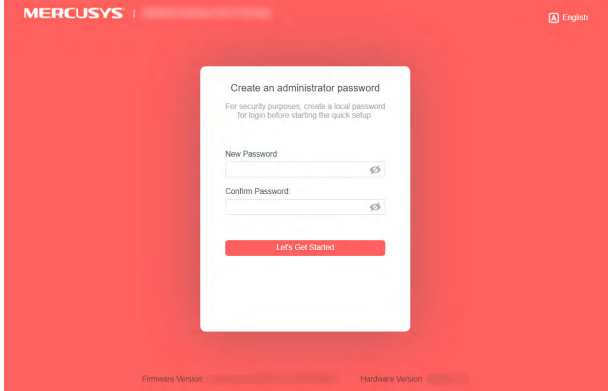
During the first setup, you may be asked to create an administrator password.
Choose a strong password that is difficult for other people to guess.
If the router has already been configured, enter the administrator password you previously created.
Step 5: Access the Dashboard
After successful authentication, you should see the Mercusys management interface.
From the dashboard, you can configure various network settings.
How to Log In Through the MERCUSYS Halo App
Mercusys Halo mesh systems use an app-based management approach.
The MERCUSYS Halo app allows users to manage their mesh network from a smartphone or tablet.
How to Create a Mercusys ID
If you are using a Halo system for the first time, you may need to create a Mercusys ID.
Follow these steps:
- Download the MERCUSYS Halo app from the appropriate app store.
- Open the application.
- Select Sign Up.
- Enter your email address.
- Create a strong password.
- Complete the email verification process.
- Return to the app and sign in.
If you do not see the verification email, check your spam or junk folder.
How to Sign In to the Halo App
Once your Mercusys ID has been created:
- Open the MERCUSYS Halo app.
- Tap Log In.
- Enter the email address associated with your Mercusys ID.
- Enter your password.
- Tap Log In.
- Select your network when prompted.
After logging in, you can access the available management features for your Halo system.
What Can You Do After Mercusys Login?
Once you have successfully logged in, you can manage many aspects of your home or office network.
Depending on your Mercusys model, available options may include:
Change Wi-Fi Name
You can change the wireless network name, also known as the SSID, to something easier to recognize.
Change Wi-Fi Password
Changing the Wi-Fi password periodically can help improve network security.
Use a strong combination of letters, numbers, and symbols.
Manage Connected Devices
The dashboard can show devices currently connected to your network. This can help you identify unfamiliar devices.
Create a Guest Network
Some Mercusys routers allow you to create a separate guest network. This lets visitors access the internet without giving them access to your primary network.
Set Parental Controls
Supported models may provide parental-control features that allow you to manage internet access for specific devices.
Update Firmware
Firmware updates can introduce improvements, bug fixes, and security enhancements. Check your router’s management interface periodically for available updates.
Run Network Tests
Certain Mercusys systems, particularly Halo products, provide tools for checking network performance and connection speed.
What to Do If Mercusys Login Is Not Working
Sometimes the Mercusys login page may not open or the password may be rejected.
Try the following troubleshooting steps.
Check Your Network Connection
Make sure your phone or computer is connected to the Mercusys router.
If you are using a mobile device, temporarily disable mobile data so that the device does not attempt to use another connection.
Disconnect Your VPN
A VPN can interfere with access to a router’s local management address.
Temporarily disconnect the VPN and try again.
Check the Login Address
For many standard Mercusys routers, try:
192.168.0.254
If that does not work, check whether your model uses mwlogin.net.
Restart the Router
Power-cycle the router by switching it off, waiting briefly, and turning it back on.
After the router has fully restarted, reconnect your device and try the login page again.
Try Another Browser
If the login page still does not load, try another browser or clear your current browser’s cache.
How to Reset a Forgotten Mercusys Password
There are two different situations to consider: forgetting your Mercusys ID password and forgetting the router’s administrator password.
Reset a Mercusys ID Password
If you forgot your Mercusys account password:
- Open the MERCUSYS Halo app.
- Select Log In.
- Choose Forgot Password?
- Enter the email address associated with your Mercusys ID.
- Check your email for the password-reset instructions.
- Follow the link and create a new password.
- Return to the app and log in again.
Reset a Router Administrator Password
The process is different if you have forgotten the local administrator password for a standard router.
A factory reset may be required.
Generally:
- Keep the router powered on.
- Locate the Reset button.
- Press and hold the reset button for several seconds.
- Wait for the router to restart.
- Allow the router to return to factory settings.
- Connect to the router again.
- Open the Mercusys login page.
- Create a new administrator password.
- Reconfigure your wireless and internet settings.
Important: A factory reset removes customized settings. Your Wi-Fi name, Wi-Fi password, internet configuration, and other changes may need to be configured again.
Mercusys Login Security Tips
Your router controls your network, so protecting its administrator access is important.
Follow these security practices:
- Create a unique administrator password.
- Avoid using your name or easily guessed information.
- Do not share the router administrator password unnecessarily.
- Use a strong Wi-Fi password.
- Keep router firmware updated.
- Review connected devices regularly.
- Disable features you do not need.
- Use a separate guest network for visitors when available.
- Keep your Mercusys ID password private.
Mercusys Router Login vs. Halo App Login
The two login methods can be summarized as follows:
| Feature | Standard Mercusys Router | Mercusys Halo |
|---|---|---|
| Main access method | Web browser | Mobile app |
| Common local address | 192.168.0.254 | Not normally used for app login |
| Mercusys ID | Generally not required | Required |
| Management | Web dashboard | Halo app |
| Wi-Fi management | Yes | Yes |
| Device management | Model dependent | Supported features depend on system |
| Parental controls | Model dependent | Supported on compatible systems |
| Factory reset | Available | Available |
Your exact features can vary according to the Mercusys model and firmware version.
Final Thoughts
Mercusys Login is relatively straightforward once you identify which type of Mercusys product you have. Standard routers commonly use a browser-based management page, while Halo mesh systems are managed through the MERCUSYS Halo app.
For standard routers, connect to your network and try 192.168.0.254 or the address specified for your model. For Halo systems, create or use your Mercusys ID and manage the network through the mobile application.
If you forget a password, use the account recovery process where available. A factory reset should be considered a last resort because it removes your customized router settings.
Following the correct login procedure and using strong passwords can make managing your Mercusys network easier while helping keep your wireless connection secure.
Frequently Asked Questions About Mercusys Login
1. What is Mercusys Login?
Mercusys Login is the process of accessing your Mercusys router’s web-based management interface or compatible Mercusys app. After logging in, you can manage Wi-Fi settings, passwords, connected devices, and other network features.
2. What is the Mercusys login address?
The commonly used Mercusys web address is mwlogin.net. Depending on the model, an IP address such as 192.168.0.254 or 192.168.1.1 may also be used.
3. Why can’t I open mwlogin.net?
Make sure your phone, computer, or tablet is connected directly to the Mercusys router’s Wi-Fi or Ethernet network. You can also try disabling a VPN, clearing the browser cache, or using another browser.
4. Does Mercusys Login require an internet connection?
The router’s local web management page does not necessarily require internet access. Your device does, however, need to be connected to the Mercusys router’s network.
Also Read: TechGup.org: Your Guide to Technology, Gadgets, News and Digital Trends
5. What password do I use for Mercusys Login?
Use the administrator password you created during the router’s initial setup. On some older models, default credentials may differ, so check the documentation for your specific device.
6. Can I log in to Mercusys from my phone?
Yes. You can access the web management page using a phone browser while connected to the router’s Wi-Fi. Compatible Mercusys products may also be managed through the Mercusys mobile app.
7. Can I change my Mercusys Wi-Fi password after logging in?
Yes. Once you access the router’s management interface, supported models allow you to change the wireless network name and password.
8. What should I do if I forget my Mercusys administrator password?
If your model provides a password-recovery option, use it. Otherwise, you may need to reset the router to factory settings and configure it again. A factory reset removes customized settings.
9. Why does my browser show a privacy warning for mwlogin.net?
Some Mercusys management pages use a self-signed certificate. As a result, browsers may display a security or privacy warning when accessing the local management interface. Mercusys explains that this warning can occur because the certificate is not issued by a trusted certificate authority.
10. Which browsers can I use for Mercusys Login?
Mercusys recommends modern browsers such as Chrome, Firefox, and Edge for accessing its web management page.
11. Can I use 192.168.0.254 instead of mwlogin.net?
On supported Mercusys devices, yes. Some Mercusys range extenders and other products use 192.168.0.254 as a default management address. Always check the instructions for your particular model.
12. How do I reset a Mercusys router?
With the router powered on, locate the Reset button and follow the reset procedure specified for your model. After a factory reset, you will need to configure the router again because customized settings are removed.
13. Can I change the Mercusys router admin password?
Yes. Compatible models allow you to change the administrator password through the router’s management interface. Using a unique and strong password is recommended.
14. Why does Mercusys Login say there is no internet?
The local router management page can work without internet access, but your device must be connected to the router. Check your Wi-Fi or Ethernet connection before troubleshooting the internet connection itself.
15. Is Mercusys Login the same as Wi-Fi Login?
No. Your Wi-Fi password connects a device to the wireless network, while the administrator password provides access to the router’s configuration settings. They serve different purposes.
16. Can I manage my Mercusys router remotely?
Remote-management capabilities depend on the specific Mercusys model and its supported features. Standard local web management is intended to be accessed from a device connected to the router’s network.
17. What should I do if Mercusys Login still does not work?
First, confirm that your device is connected to the Mercusys network. Then try mwlogin.net, the appropriate IP address for your model, another browser, or an Ethernet connection. If the problem continues, consult the official documentation for your specific Mercusys model.
18. Is a factory reset necessary if I cannot log in?
Not always. Try checking your network connection, login address, browser, and administrator password first. A factory reset should generally be considered only when other troubleshooting methods fail because it erases your customized configuration.
